For electrical contractors
Electrical takeoff software that counts the fixtures for you
Lighting and power plans are page after page of the same symbols. Box one troffer and Auto Count finds every one, turn the fixture schedule into items, and price the labor at the electrician rate for the job's county.
Start your free trial. No card required.
Fixtures and devices
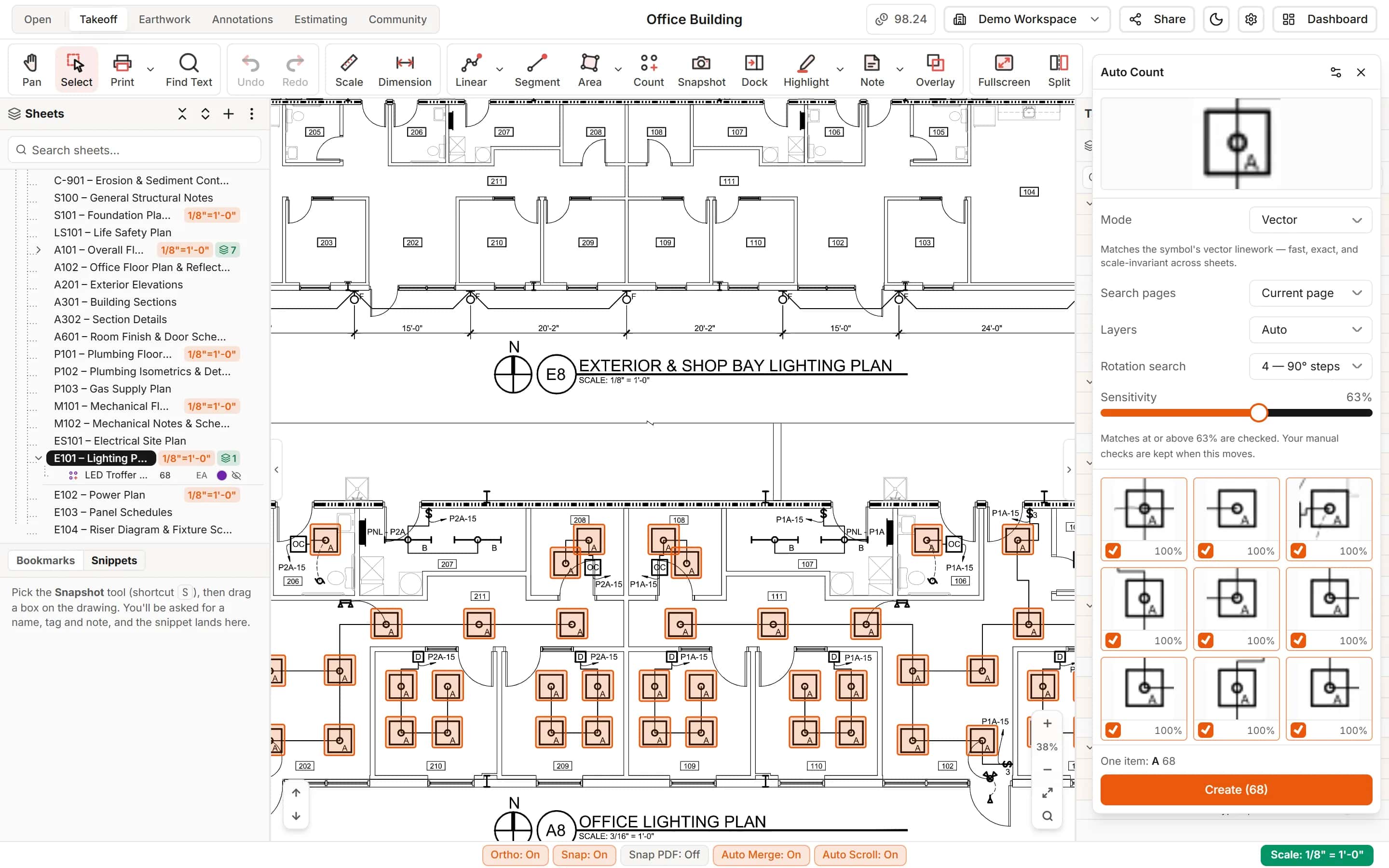
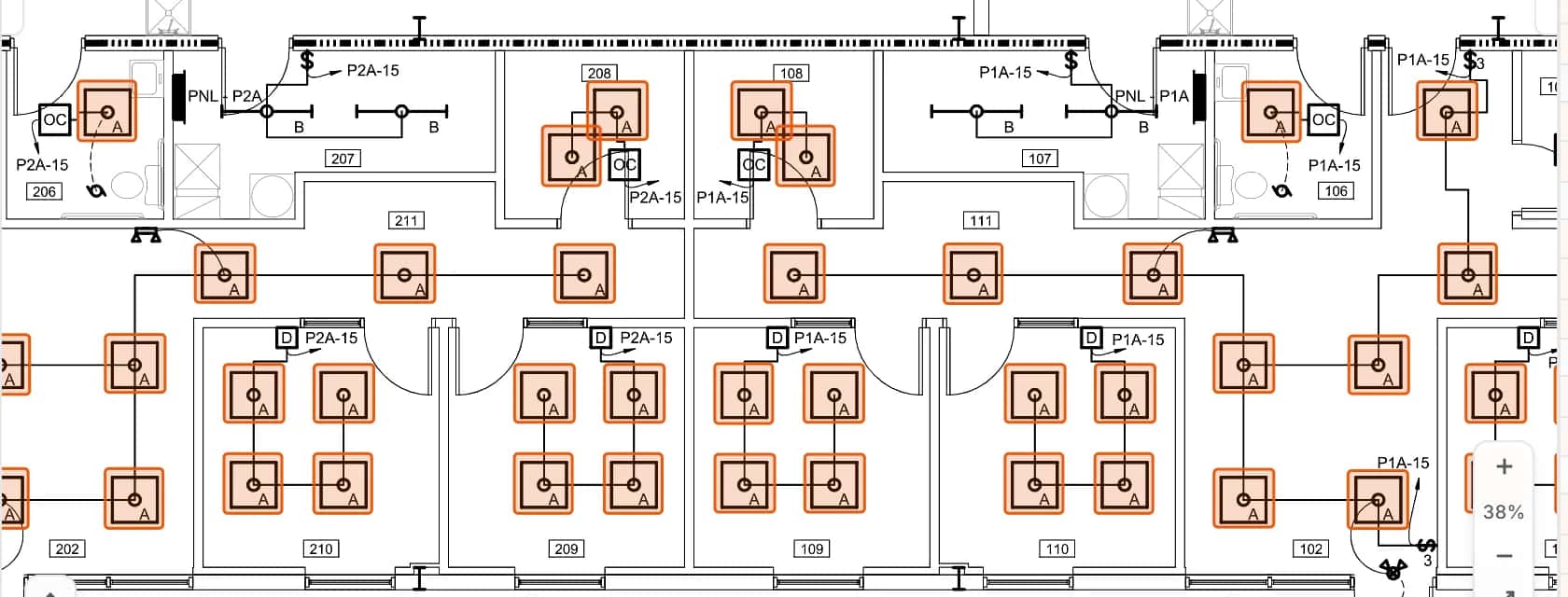
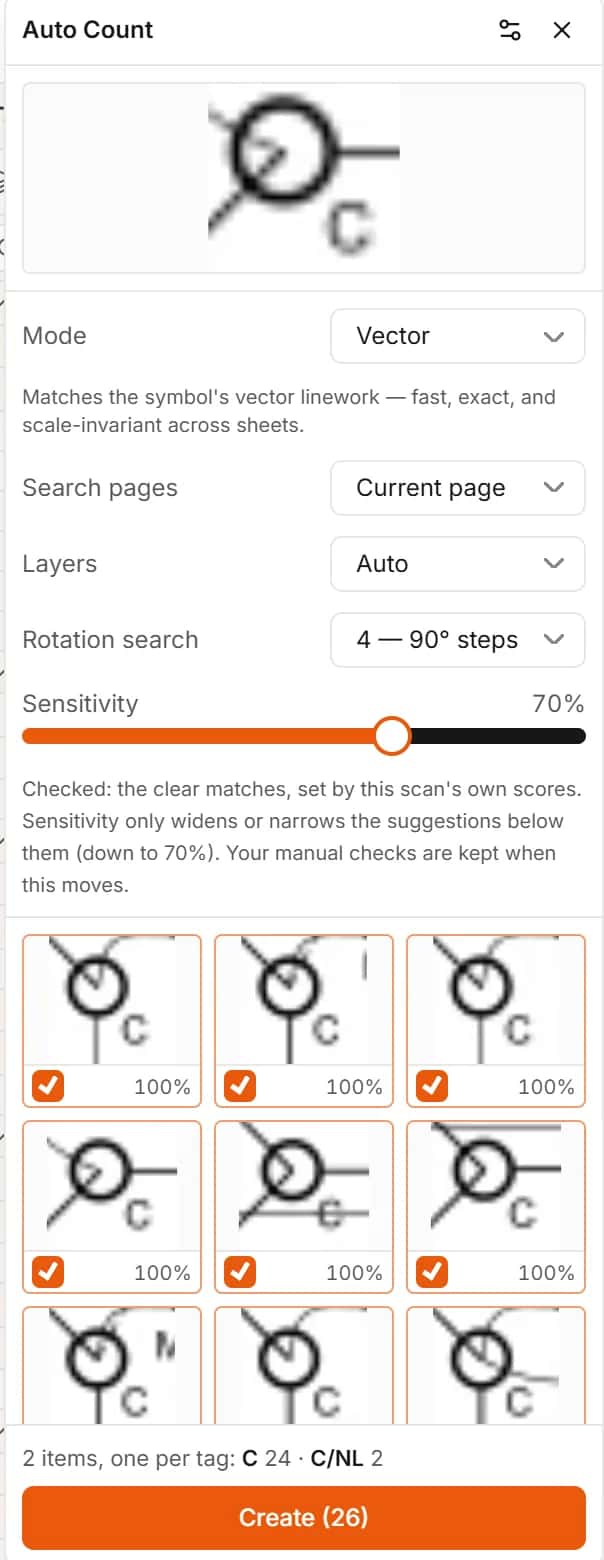
Every fixture of a type, found and counted
Auto Count reads the plan's linework, so a 2x2 troffer is found wherever it is drawn, turned or mirrored. Fixtures with different tags become separate items.
- Review every match before it counts
- Typical (TYP.) symbols counted when the tag is printed once
Schedules
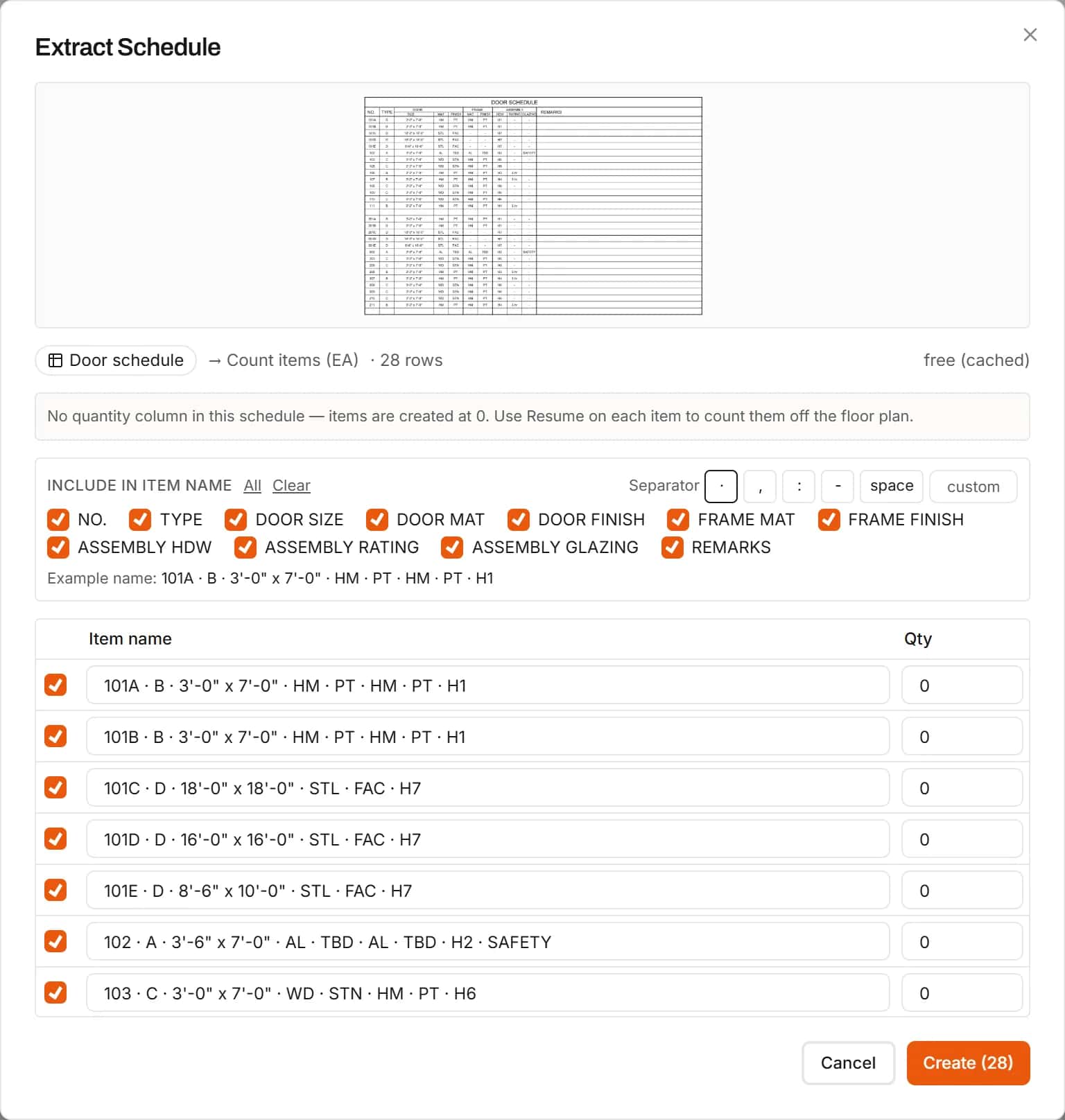
Turn the fixture schedule into items
Box the schedule and Extract Schedule lists one count item per row, named from the columns you choose.
- Start from the schedule's quantities or count them off the plan
Electrician rates
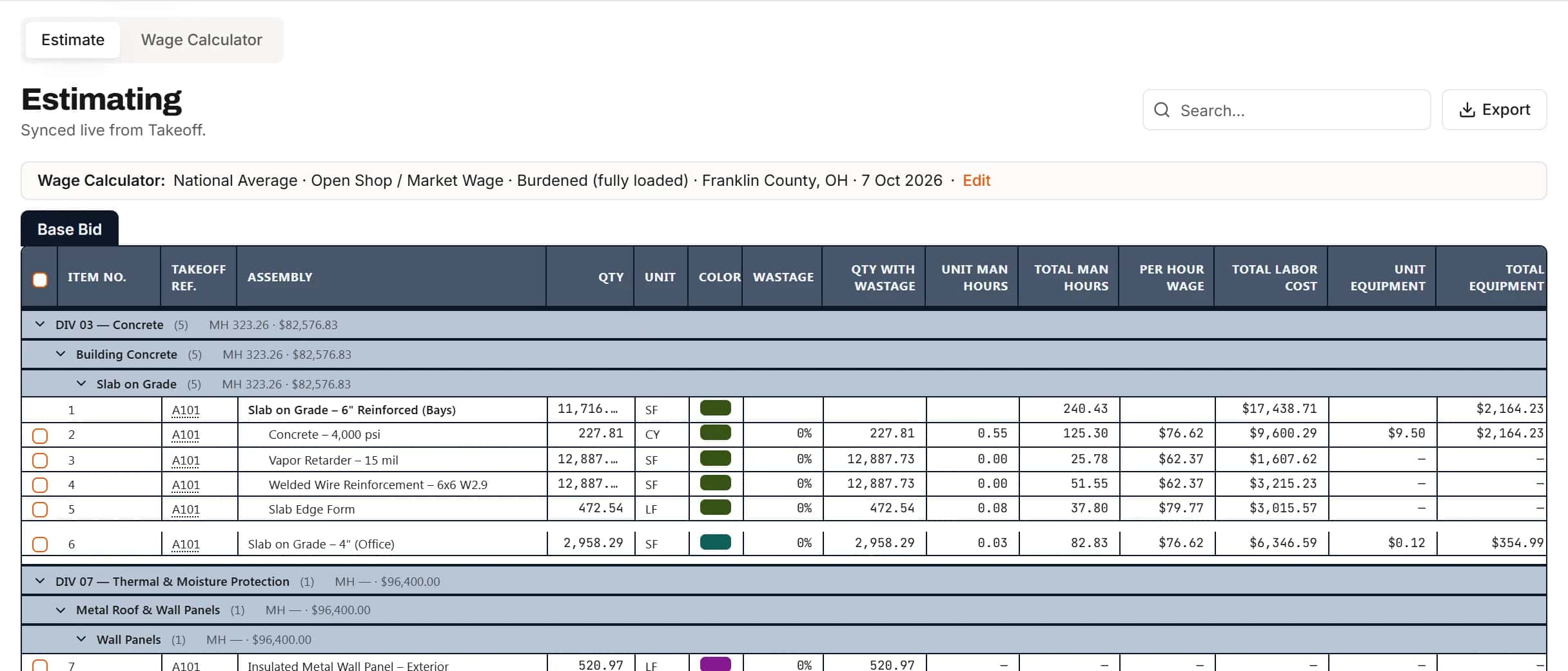
Labor at the right rate for the job
The Wage Calculator sets electrician and helper rates for the project's county, open shop, union or prevailing wage, and your labor lines use them.
- Burdened or direct labor
- Davis-Bacon wage determinations from SAM.gov
Tag variants
Night lights, emergency fixtures and standard fixtures kept apart
When fixtures share a symbol but carry different tags, Auto Count makes one item per tag, named by the tag.
- One item per printed tag
- Vector sheets
Runs and devices
Measure conduit runs and count devices on the same sheets
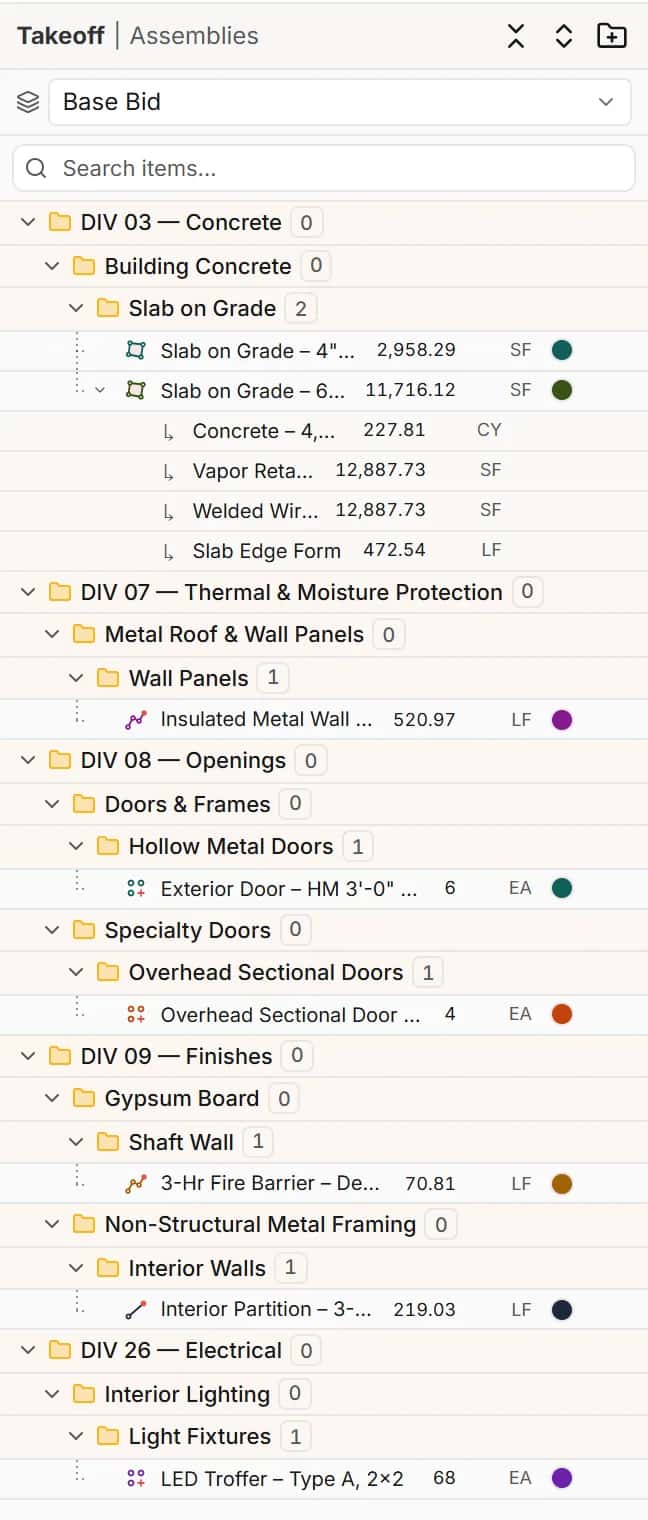
Measure feeder and branch runs with Linear, count receptacles and switches, and file everything under Division 26 as you go.
- Sub-items for wire, fittings and boxes from one run
- Division 26 scopes for lighting, power and devices
How it works
- 1
Box a symbol
Pick one fixture or device on the plan.
- 2
Review and create
Check the matches, create one item per tag.
- 3
Price
Material and labor at the job's electrician rate.
Frequently asked questions
Does it find fixtures drawn at different angles?
Yes. Rotation search finds copies turned in 90 degree steps, and Include Mirror finds mirrored ones. Scanned sheets use Image mode, which searches in 45 degree steps.
Can I count the same fixture across every lighting sheet?
Yes. Search all pages or pick the sheets, and Auto Count looks on each one.
Can I turn the fixture schedule into count items?
Yes. Box the schedule and Extract Schedule lists one count item per row of the schedule, named from the columns you choose.
Does Auto Count work on scanned electrical drawings?
Yes. Image mode matches the picture of the symbol on scanned sheets. Vector mode is the better choice on CAD-produced PDFs.
Features for this work
- Auto CountBox one symbol and IntelCost finds the rest, turned and mirrored copies included.Learn more
- AI toolsRead title blocks, turn schedules into items and ask questions about any part of a sheet.Learn more
- Wage CalculatorLabor rates for the job's location and wage determination, saved to the project.Learn more
- EstimatingPrice every takeoff item with labor, material, equipment and sub quotes, up to the bid total.Learn more
Bring your next bid set.
Upload the drawings, set the scale and measure your first item in the same sitting. Your projects live in the cloud, so the whole team opens the same set from any computer.
Start your free trial. No card required.