AI tools
AI construction takeoff tools that do the typing for you
Box a door schedule and get one count item per row. Name a scanned set from its title blocks. Ask a question about the notes on a sheet. The AI does the reading; you check the result before anything is saved.
Start your free trial. No card required.
Extract Schedule
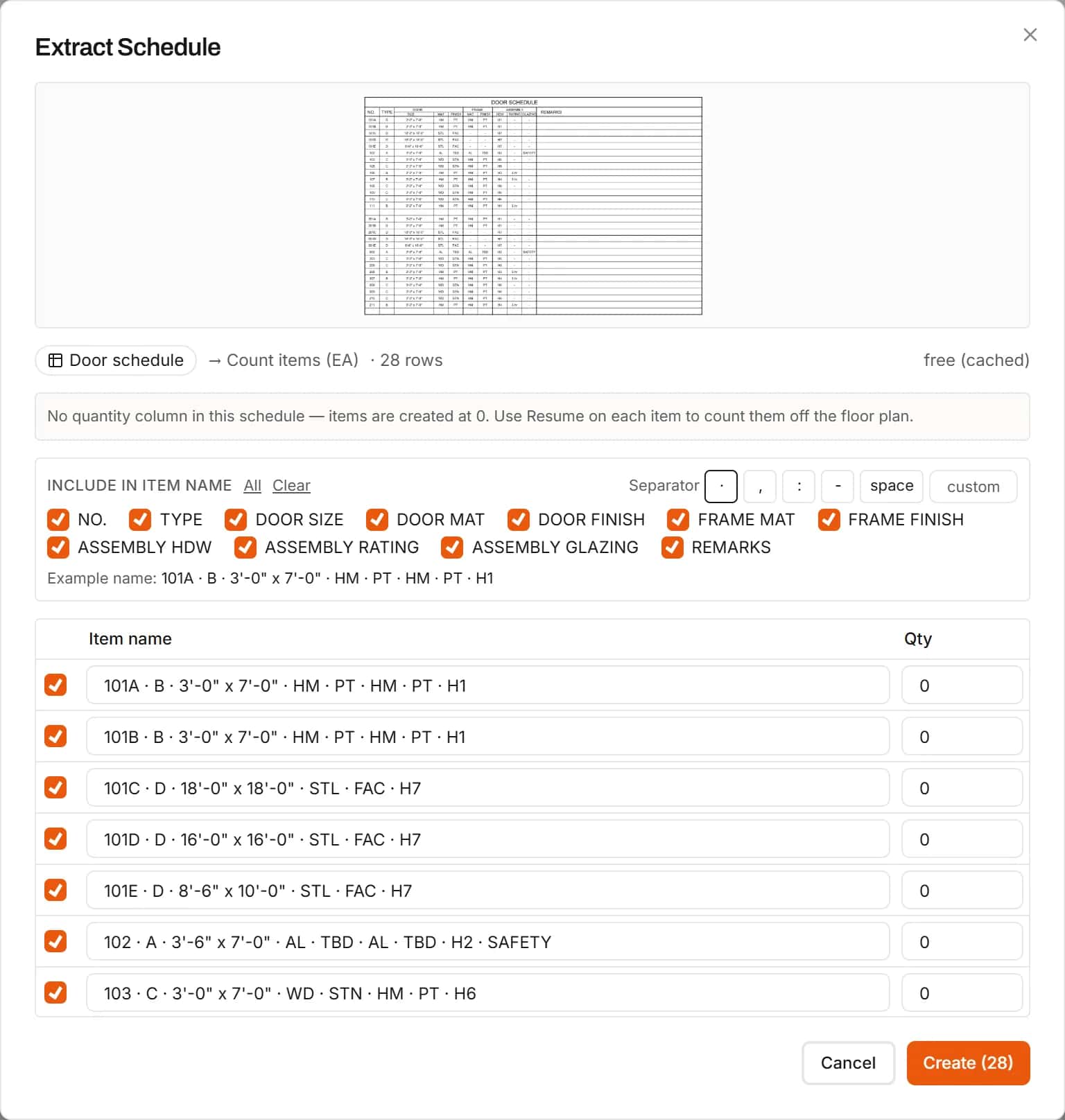
Turn a schedule into takeoff items
Box a door, window or fixture schedule. IntelCost reads the table and lists one item per row: a count item for door, window and fixture schedules, an area item for finish schedules. Pick the columns that make up each item's name, choose how to start the quantities, and create them all at once.
- Use the schedule's quantities, or start at zero and count them off the plan
- Choose which columns build each item's name
- Every row can be edited or left out before you create
Ask AI
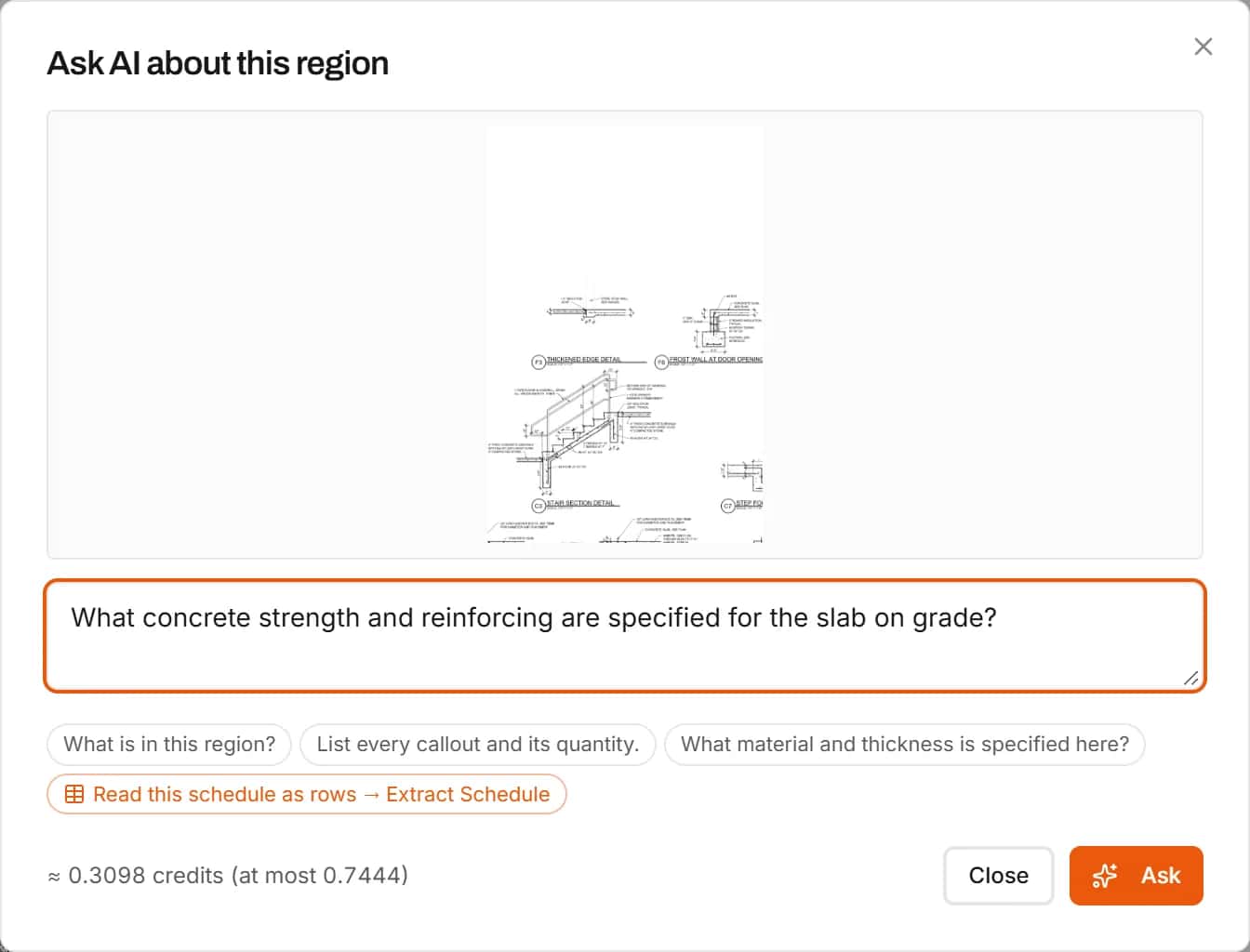
Ask a question about any part of a sheet
Box the general notes, a detail or a spec block and ask what you need to know. The answer streams in, and you can copy it or save it as a note on the sheet.
- Works on any region you draw
- Copy the answer, or add it as a note
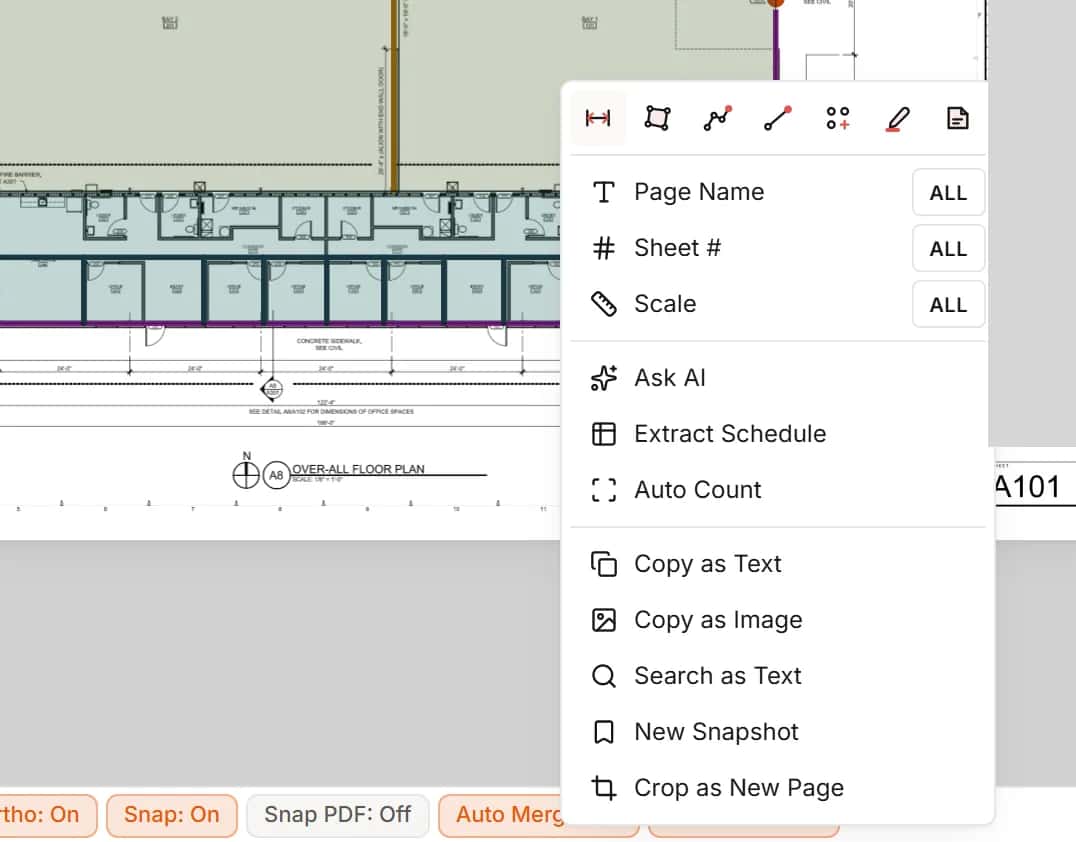
Sheet names and scales
Title blocks read even when the PDF text is broken
Sheet numbers, names and scales are read from the PDF's text first. When that text cannot be read, as on many scans, AI reads the title block instead, and its results are marked so you know.
- Auto-Name Sheets for a whole set
- Scale read from the sheet and checked against its dimensions
Auto-Name Sheets
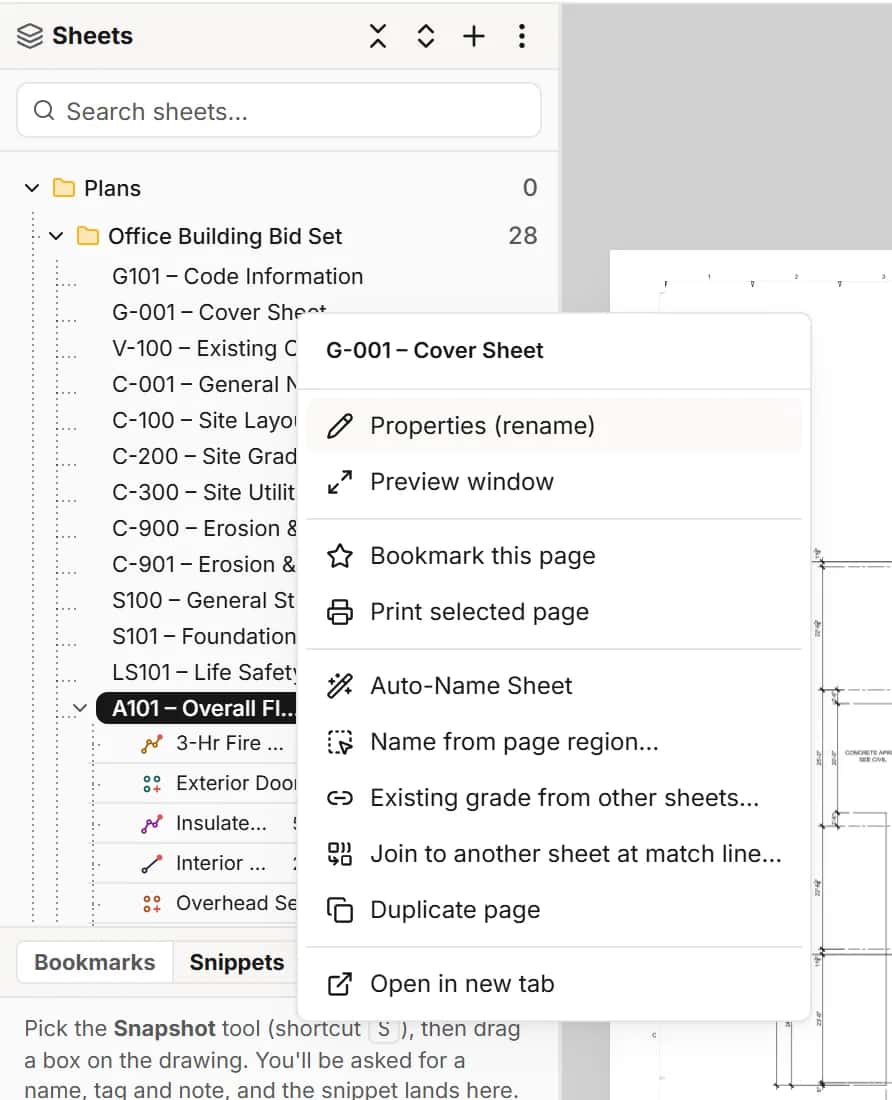
Name a scanned set without typing a single sheet number
Pick the sheets and run Auto-Name Sheets. IntelCost tells you what the run will use before it starts, then names each sheet from its title block.
- Run on all sheets or only the ones you select
- Offered right after you add new pages
AI credits
Know what AI costs before you run it
Each Professional seat adds monthly AI credits to a pool your workspace shares. Owners see the balance and recent calls, set limits per person, and can buy more.
- An estimate shown before larger runs
- Per-user limits and what members can see
- Top-up credits that do not expire
How it works
- 1
Box the region
Draw a box around a schedule, a title block or a block of notes.
- 2
Pick the AI tool
Extract Schedule, Ask AI, or read the page name, sheet number or scale.
- 3
Check and keep
Review what the AI read, edit anything, then create or save.
Frequently asked questions
Can AI turn a door schedule into takeoff items?
Yes. Extract Schedule reads the schedule table you box and lists one count item per row. You choose the columns for each item's name and create them in one step.
Which plan includes the AI tools?
Professional. Each Professional seat adds monthly AI credits to a pool shared by the workspace, and owners can buy more. Essentials does not include AI.
Does the AI change my takeoff on its own?
No. You review what it read and nothing is saved until you create the items or apply the names.
Will AI name the sheets of a scanned drawing set?
Yes. When a page has no readable text, the title block is read by AI. Results that came from AI are marked so you can check them.
Can I ask AI about the notes on a drawing?
Yes. Box the notes and choose Ask AI, then type your question. You can copy the answer or save it as a note on the sheet.
Learn more
Guides for the work behind this feature, useful whatever software you use.
Related features
- TakeoffMeasure lengths, areas and counts on your plans, with every sheet at its own scale.Learn more
- Auto CountBox one symbol and IntelCost finds the rest, turned and mirrored copies included.Learn more
- EstimatingPrice every takeoff item with labor, material, equipment and sub quotes, up to the bid total.Learn more
- CollaborationYour whole team on the same project in real time, with annotations and comments for reviewers.Learn more
Bring your next bid set.
Upload the drawings, set the scale and measure your first item in the same sitting. Your projects live in the cloud, so the whole team opens the same set from any computer.
Start your free trial. No card required.